Ultimate Music Player: Play Local Music in Your Browser with a Visualizer
A music collection on your hard drive but no player installed, or one that nags you with ads, forced accounts and cloud sync? The KodiniTools Ultimate Music Player plays local audio files directly in your browser. Drop a folder in, press play, done. Shuffle, repeat and a visualizer that makes the beat visible are included.
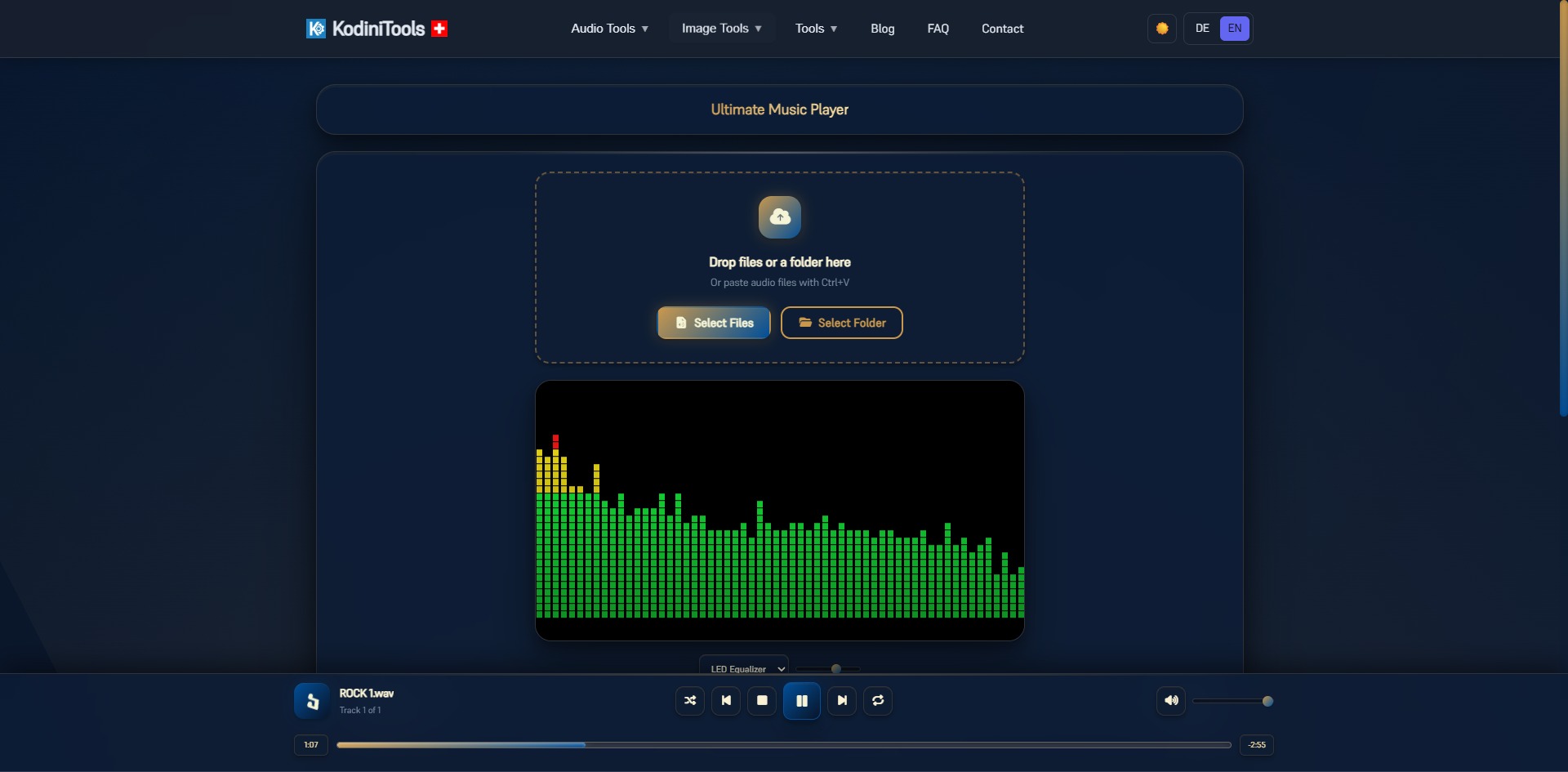
What the Music Player Offers
- Load files and folders: drop single tracks or entire folders, pick them via the buttons, or paste with Ctrl+V. A folder is taken over as a complete playlist.
- Playlist management: the bar at the bottom shows the current track and its position in the list, such as "Track 3 of 25". Previous and next jump through the collection.
- Shuffle and repeat: random order for variety, repeat for continuous playback at a party or while working.
- Visualizer: an LED equalizer reacts live to the music. The dropdown offers further display modes, and a slider next to it adjusts the display.
- Transport and volume: play, pause, stop, a progress bar with elapsed and remaining time, plus a volume slider with mute.
- Formats: all common audio formats your browser can play, including MP3, WAV, OGG, FLAC and M4A.
Step by Step: Playing Music in the Browser
-
Open the Music Player
Go to kodinitools.com/ultimativer-musikplayer — free, no registration.
-
Add files or a folder
Drag music into the dashed area or click "Select Files" or "Select Folder". The tracks appear in the playlist immediately and the first one starts.
-
Control playback
Use the buttons in the bar at the bottom to pause, stop or skip to the next track. Click the progress bar to jump within a track.
-
Enable shuffle or repeat
The two outer buttons of the transport group toggle random playback and repeat.
-
Adjust the visualizer
Below the visualizer, choose the mode in the dropdown and fine-tune the display with the slider.
Tip for large collections: keep your music in subfolders by genre or mood. One folder per occasion, loaded via "Select Folder", replaces assembling a playlist by hand. If you need playlists as files, the Playlist Generator is the right tool.
When a Browser Player Is the Better Choice
- Someone else's computer: play music from a USB stick or download folder at the office, at school or at a friend's place without installing anything.
- Background music: a tab with the player runs alongside your work without a separate app taking up resources.
- Parties and events: load a folder, turn on shuffle and repeat, put the visualizer on the projector.
- Quick preview: check downloads, recordings or exports from other KodiniTools right away.
Privacy: Music Stays on Your Device
The player reads files directly in the browser; nothing is uploaded. Neither tracks nor file names leave your computer. The same applies to the visualizer, which analyzes the audio locally via the Web Audio API.
Play music in your browser now — playlist, shuffle, repeat and visualizer, free and with no upload.
Open Music Player →