Watermark Multiple Images at Once: Protect Hundreds of Photos in One Pass
A shoot with 300 pictures, a product series for the shop, preview images for clients: watermarking every single photo by hand takes hours. KodiniTools Batch Edit does it in one pass. You enter the text once, set font, color, opacity and position, and the watermark appears immediately on every selected image. No installation, no registration, no upload.
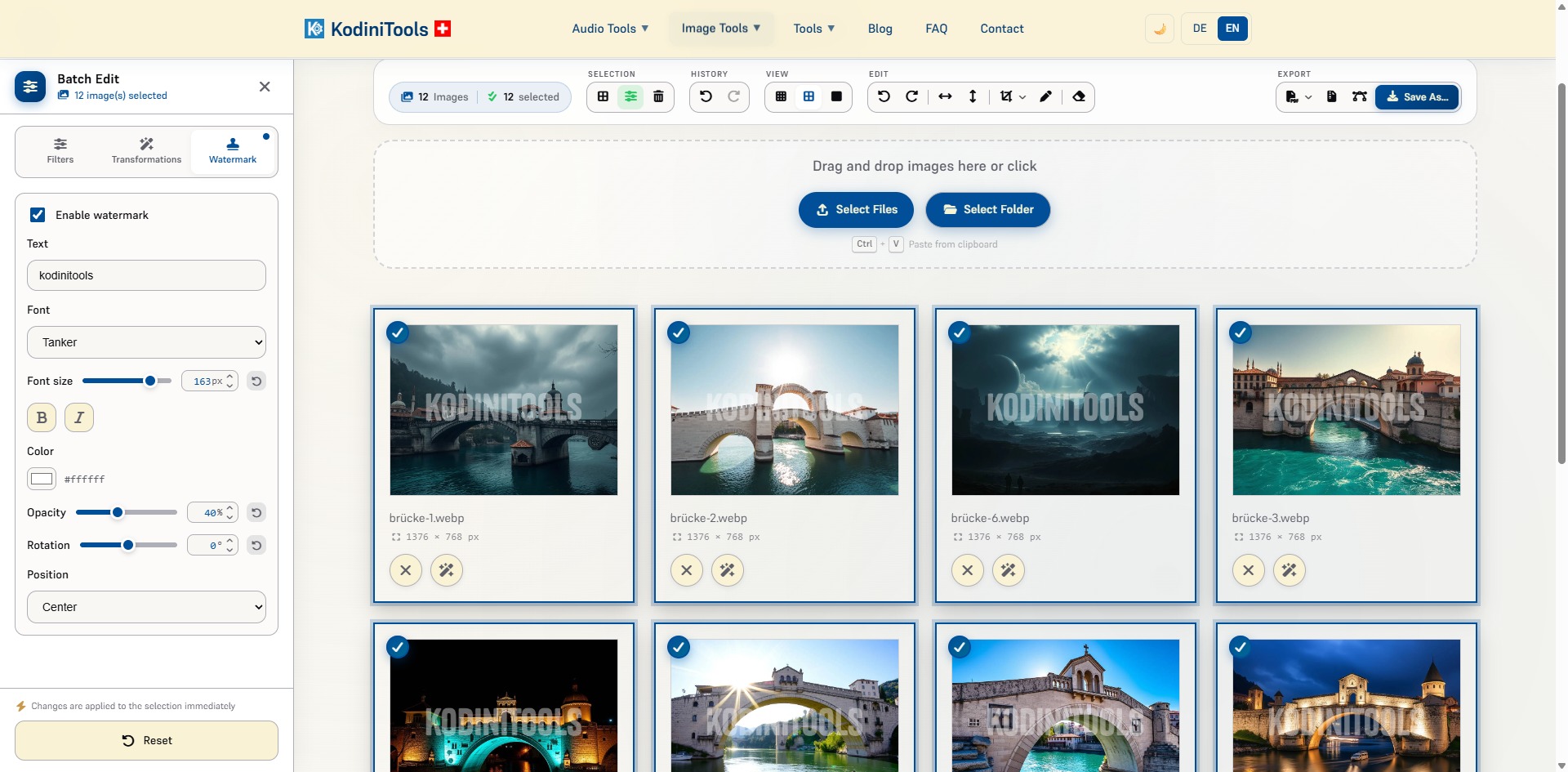
What Sets the Watermark Feature Apart
- One watermark, all images: the text is entered once and placed on every selected image. Whether 12 or 300 images, the effort stays the same.
- Live preview: every change is applied to the selection immediately. You see in the gallery how the watermark looks on light and dark subjects before you export.
- Full control over the design: 14 fonts from Helvetica to Zodiak, font size from 10 to 200 px, bold and italic, any color, opacity from 0 to 100 % and rotation from −180° to 180°.
- Six positions: center, top left, top right, bottom left, bottom right or tile. In tile mode the text repeats across the whole image, ideal as copy protection.
- Scales with resolution: the font size refers to the original image. The preview thumbnail shows the watermark scaled down; the export contains it at full resolution.
- Combinable: watermark, filters, borders, resizing and renaming can all be applied in the same pass.
Step by Step: Watermarking Hundreds of Images
-
Open the batch image editor
Go to kodinitools.com/bilderseriebearbeiten — free, no registration.
-
Load images
Drag and drop files into the area, click "Select Files" or simply "Select Folder". Ctrl+V from the clipboard works too. JPEG, PNG, WebP, BMP and GIF are supported.
-
Select images
Use "Toggle All" in the "Selection" bar to mark all images at once, or click individual images. The Batch Edit panel shows at the top left how many images are selected.
-
Design the watermark
In the "Batch Edit" panel open the "Watermark" tab, tick "Enable watermark" and type the text, for example "© My Name". Then set font, font size, color, opacity, rotation and position. The gallery updates with every change.
-
Export
Choose the target format and quality via "Save As…". Multiple images land on your computer as a ZIP archive, each with the watermark burned in. Alternatively, export the images directly as a PDF.
Tip for a subtle yet effective watermark: white text at 30 to 50 % opacity works on most photos. For client previews that must not be reused without permission, choose "Tile" with −30° rotation: the text then covers the whole subject and cannot simply be cropped away.
Typical Use Cases
- Photographers: hand preview images of a shoot to clients for selection without giving away the unmarked originals.
- Online shops and marketplaces: mark product photos with a brand name or logo lettering so they do not show up in other people's listings.
- Real estate and architecture: add the company name to property photos for exposés before they go to listing portals.
- Social media and blogs: sign your own graphics and photos with a handle or URL so the source stays attached when shared.
- Agencies and creatives: label drafts and layouts as "Draft" or "Confidential" before sending them for approval.
Privacy First
All images are processed entirely locally in your browser. The watermark is drawn via canvas directly on your computer, and the ZIP archive is created there as well. No image ever leaves your device. For client photos, unreleased product series and confidential drafts, this is the right choice.
Add watermarks now — to hundreds of images at once, with live preview, free in your browser.
Open Batch Image Editor →