Visualizer Effects: 130+ Audio Visualizations, Multi-Layer & Beat Reactions in Your Browser
An audio visualizer is only as good as its effects. The KodiniTools Audio Visualizer ships more than 130 of them: classic spectrum bars, pulsing rings, light rays, tunnels, mandalas, stage lights, lasers, fireworks and northern lights. Most effects run as GPU presets via WebGL directly on your graphics card, can be stacked as layers and react to bass, mids, treble or only to the beat. This guide walks through the effect families, shows how to combine them and how to export the result as a video.
Four Effect Groups at a Glance
The effect picker is organised into four groups. The number in the list header always shows how many effects are currently available.
- GPU Presets: The largest block. These effects are computed as shaders on the graphics card and stay smooth even in demanding scenes. They cover spectrum, geometry, light, laser, LED, disco, fireworks and aurora.
- Portrait (image): Five effects that take one of your own images, such as a photo or logo, and distort, glitch or dissolve it into LED dots in time with the music.
- Classic (Canvas2D): 47 older effects that work without WebGL. They serve as a fallback on devices without WebGL2 and keep existing presets working.
- My Presets: As soon as you save a layer combination, it shows up here as its own entry.
The Most Important Effect Families
Spectrum and Waveform
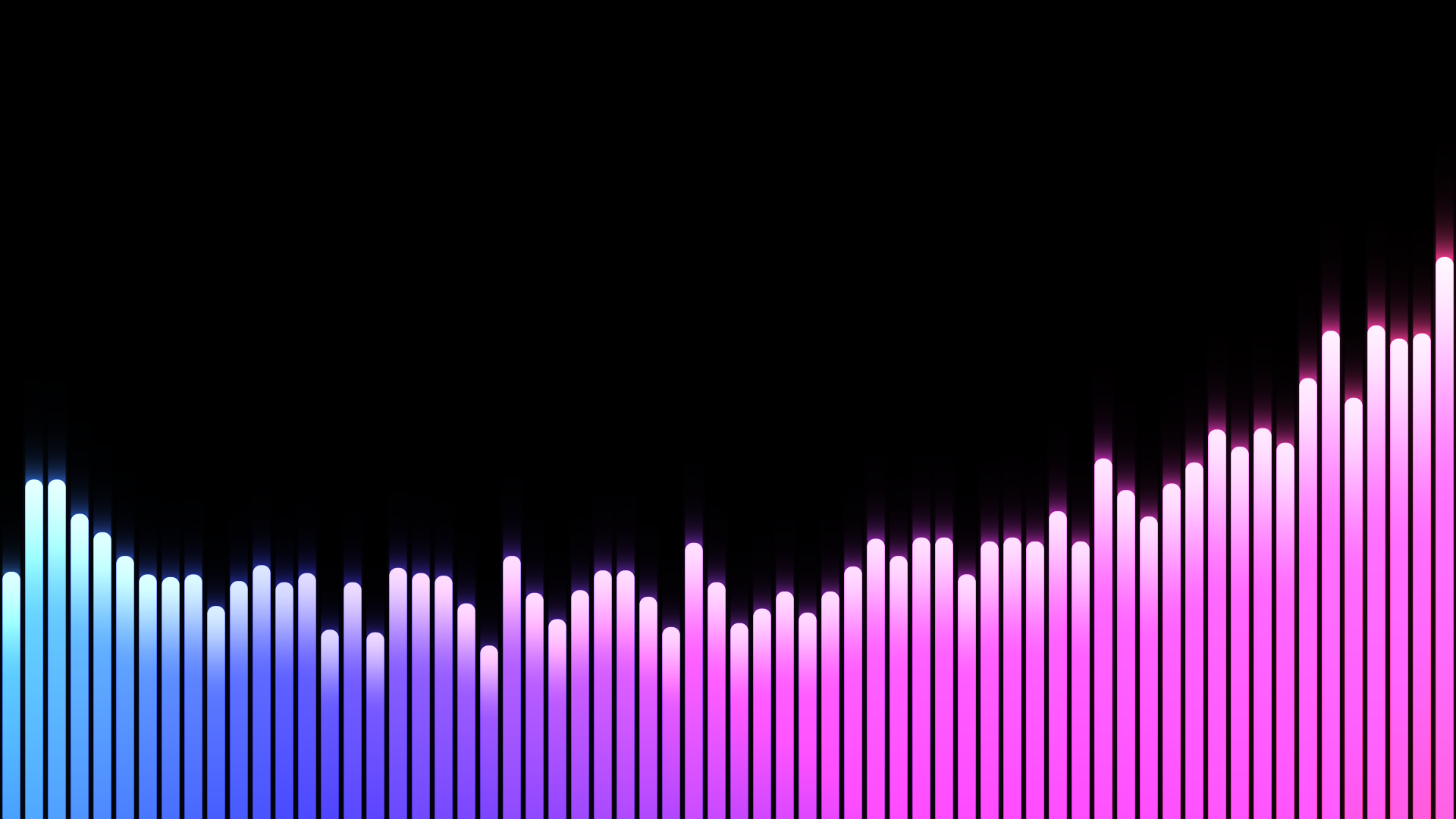
The foundation of every visualization: "Bars", "Bars mirrored" and "Radial Bars" show the frequency spectrum as columns, in a circle or mirrored around the centre line. "Waveform" draws the real time-domain signal as a glowing line with ghost traces, "Strings" makes lines vibrate like tuned strings, and "LED Level Meter" recreates the familiar green-yellow-red chain with peak hold. "Audio Landscape" rolls the spectrum history towards the viewer as a mountain range where bass raises the peaks.
Rings, Cores and Pulses
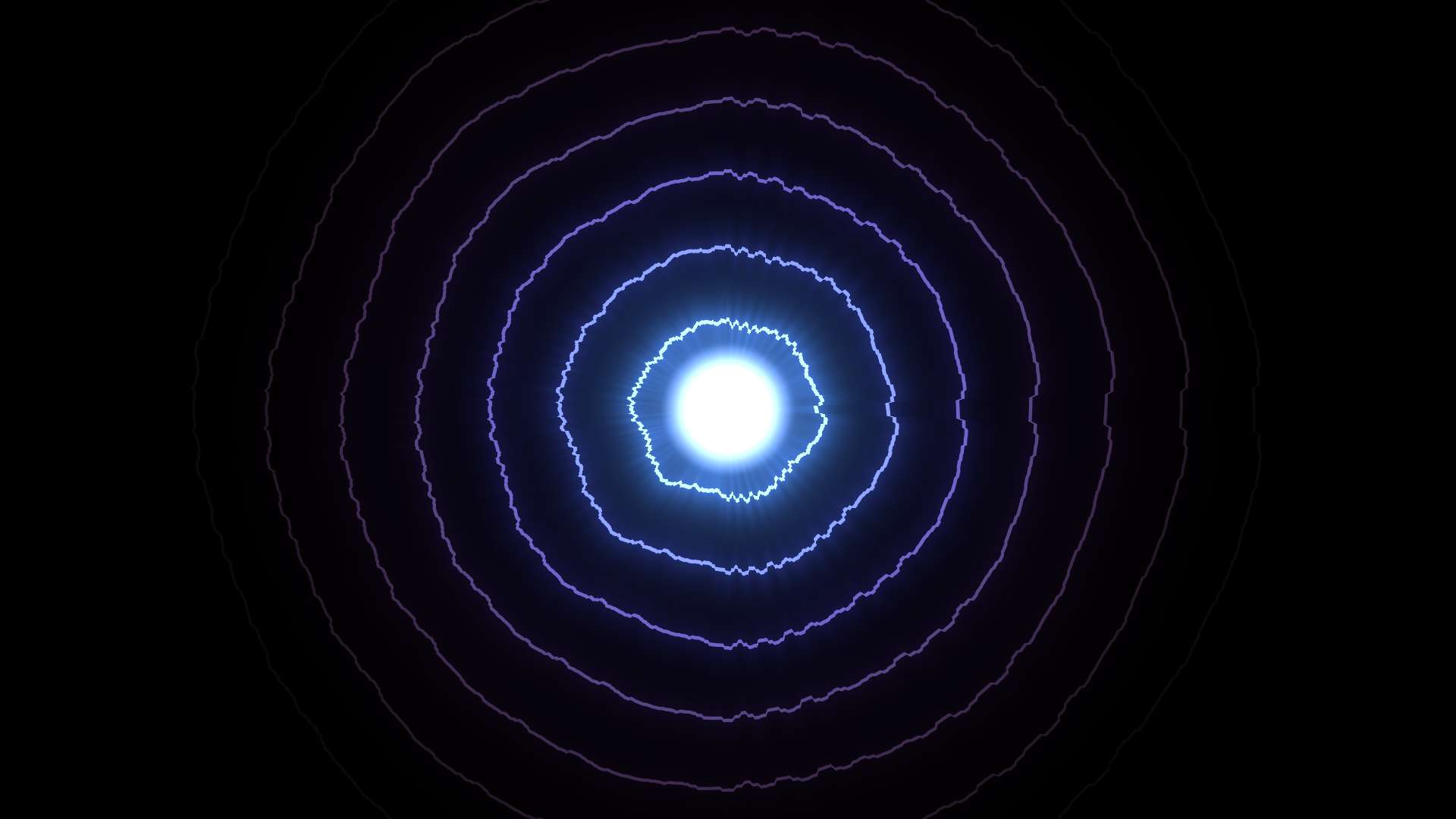
In "Pulse Rings", rings expand from a beating core, modulated by the spectrum. "Centrifugal Rings" goes one step further: every frame of the spectrum is born as its own ring and travels outward, so a beat becomes a thick wave. "Audio Sphere" is a raymarched sphere whose surface is displaced by the spectrum, and "Blobs" lets soft spheres merge and pop apart again while the bass inflates them.
Light, Stage and Laser
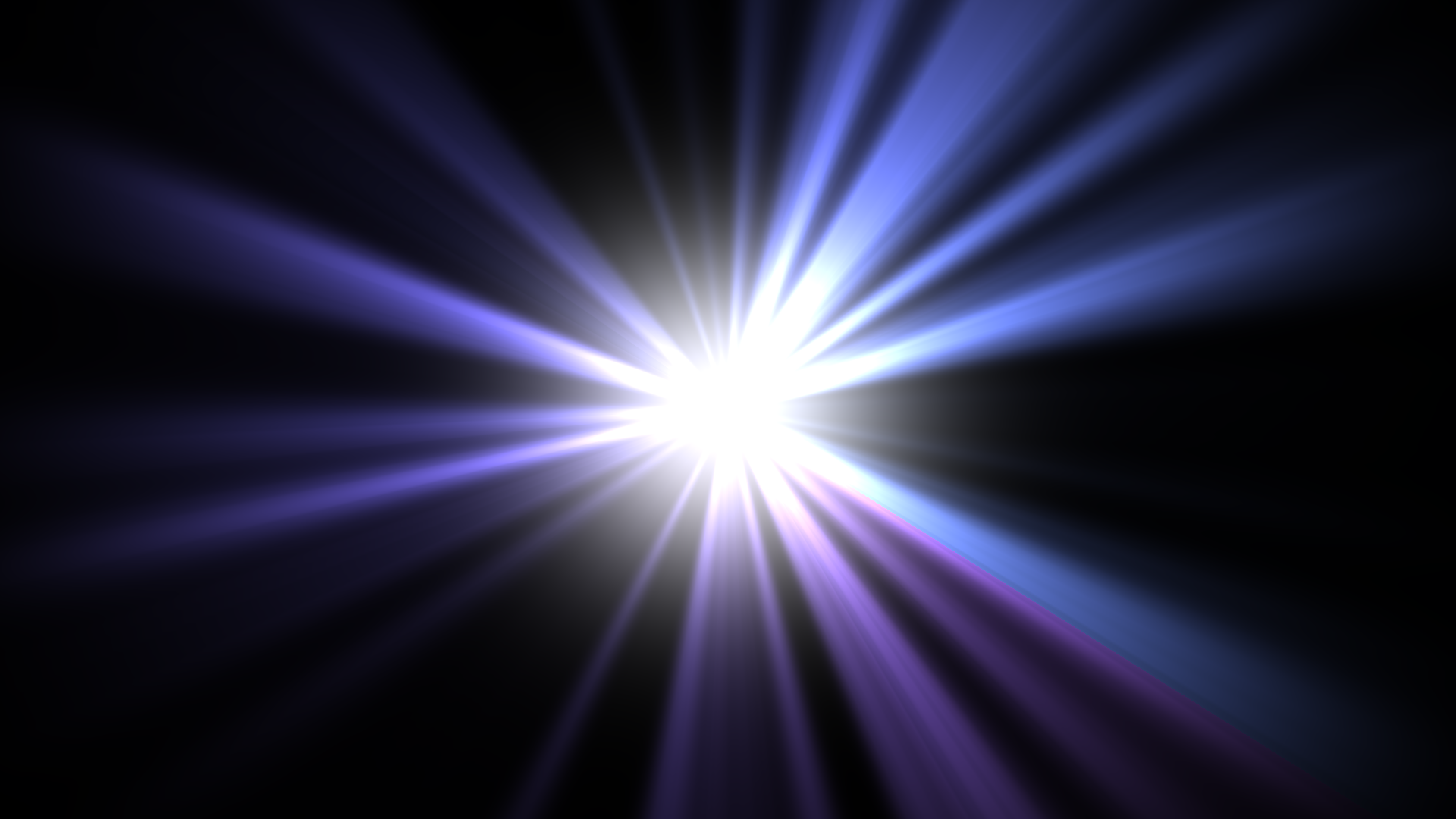
Beyond "Light Rays" there is a whole stage rig: "Stage Lights" shine down through fog from a truss, "Footlights" beam upward from the stage edge, and "Corner Beams", "Side Lights" and "Searchlights" swing their cones to the beat. The "Colour Organ" quotes the 70s with three frosted panels for bass, mids and treble. Eleven laser effects, from "Laser Fan" through "Laser Spirograph" to "Laser Oscilloscope", draw thin beams in fog where bass and mids set the geometry and onsets re-orient the figure. Four disco effects add a mirror ball, sweeping reflections and a lit dance floor.
Tunnels and Space
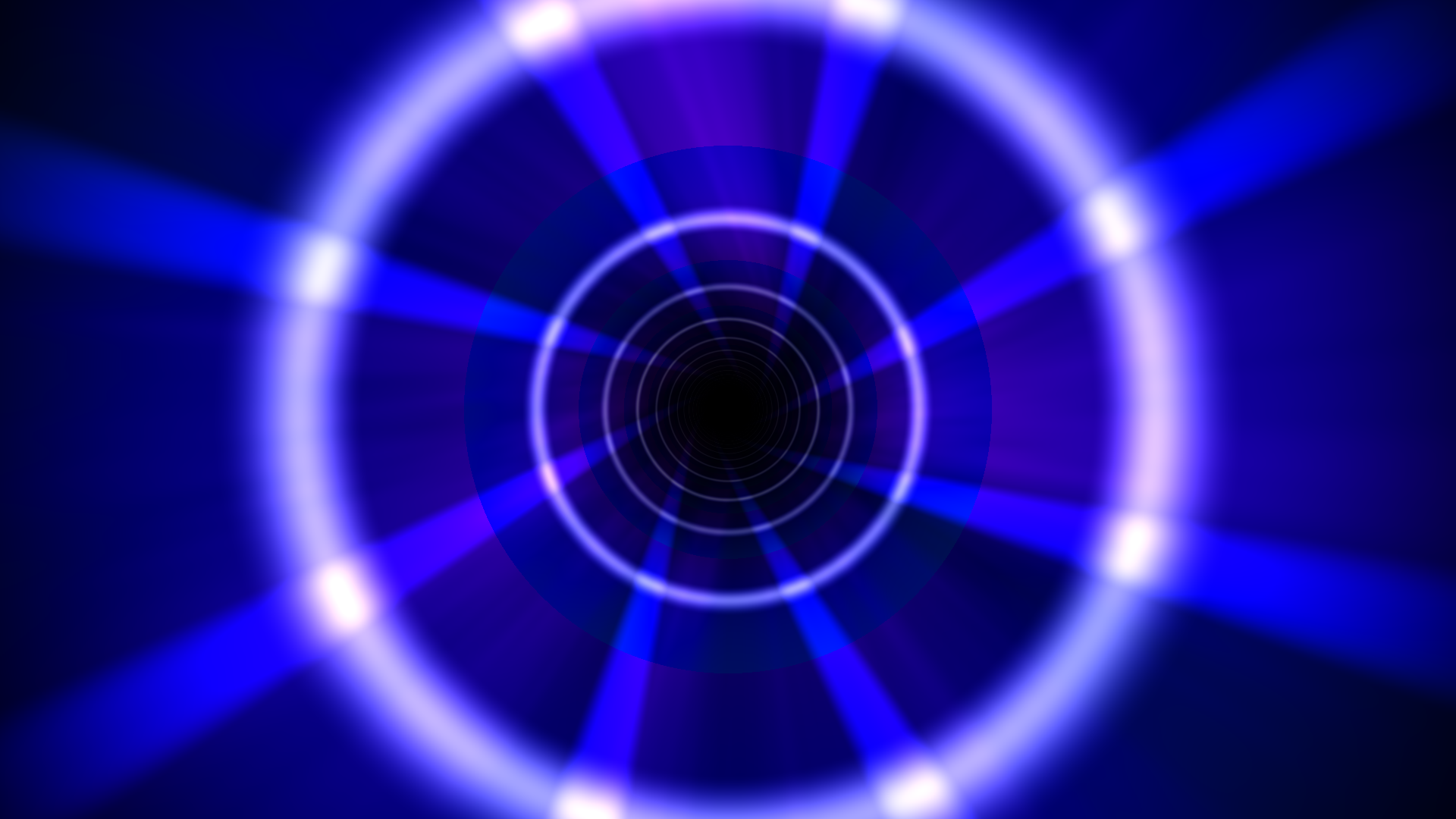
"Tunnel" flies through a twisting, noise-textured tube that twists on every onset. "Honeycomb Tunnel" lines the tube with hexagons that light up per frequency band. "Stargate" stacks concentric rings of glowing segments, each rotating at its own speed and direction. For outer space there are "Warp Stars" with hyperspace streaks, "Galaxy" with rotating spiral arms and "Particle Storm" with thousands of particles that burst outward on every beat. "Neon Grid" delivers the synthwave floor with a striped sun on the horizon.
Mandala, Fractals and Geometry
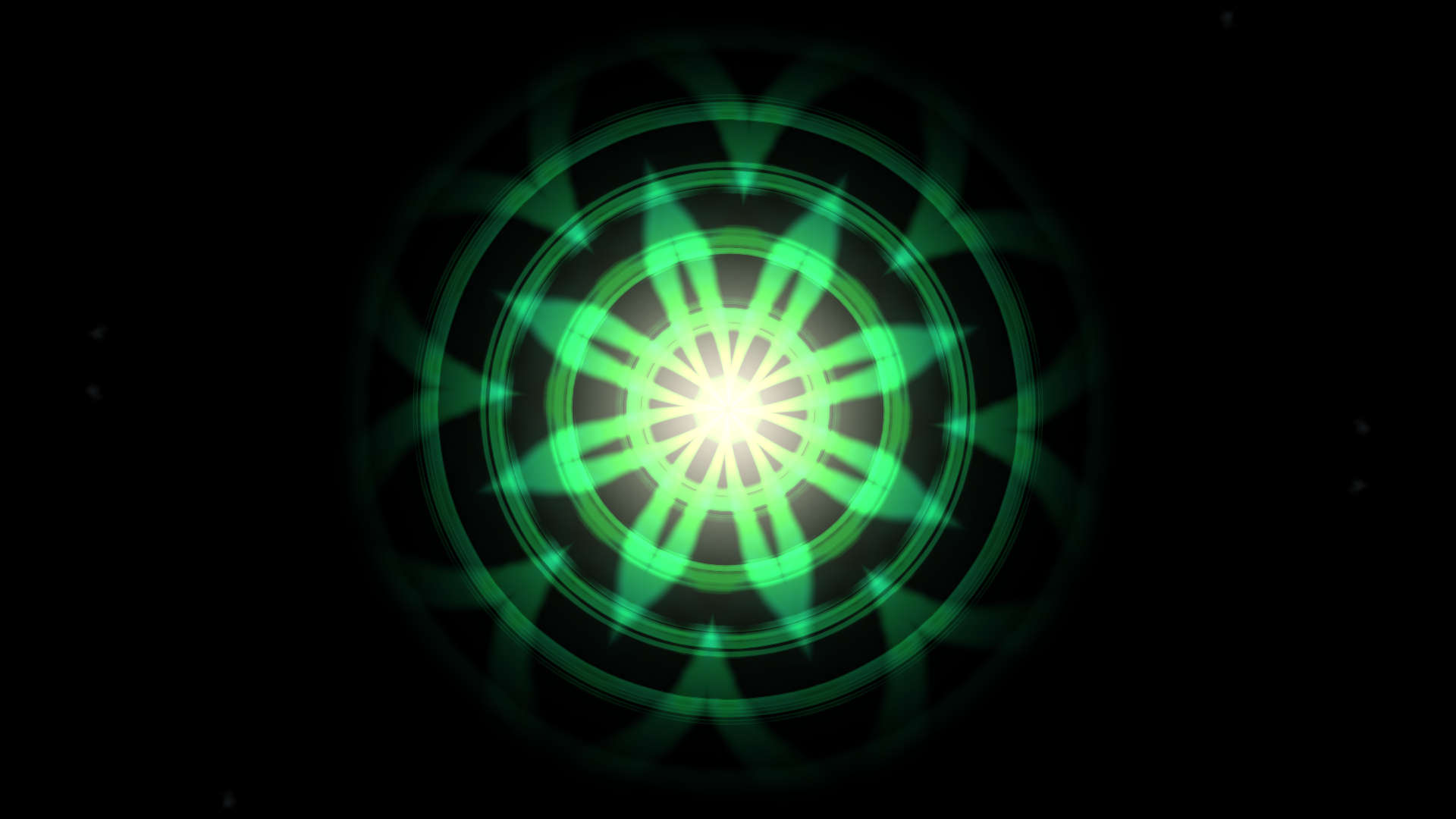
"Mandala" warps noise kaleidoscopically and places spectrum rings around a bass core. "Fractal Bloom" folds a fractal whose distances breathe with the bass and whose rotation follows the onsets. "Flower of Life" is a circle lattice that lights up from the inside out. "Cymatics" shows Chladni figures of a vibrating plate, "Interference" lets orbiting wave sources form moiré patterns, "Crystal Cells" lights a Voronoi mesh at the edges with treble and in the cores with bass, and "Neon Maze" draws endless curves from Truchet tiles that flip on every onset.
Nature, Fire and Fireworks
Six aurora effects, from "Northern Lights Curtain" through "Northern Lights Lake" to "Aurora Swirl", bring calm colour veils for ambient and chill-out. "Fire" sends flames up from the bottom that roar on bass and throw embers on treble. Five fireworks variants, including peony, willow, rings, fountains and a "Grand Finale" with a sky flash, launch a rocket on every onset. "Lightning" strikes from the centre to the edge on beats, "Matrix Rain" lets columns of glyphs fall.
LED Walls, Digits and Letters
If you want the look of real LED hardware, there are "LED Wall" (3×3 and 5×5), "LED Matrix", "LED Ring", "LED Strips", "LED Blinder", "LED Sunstrip" and "LED Hex Panel". Especially for countdowns and intros: "LED Digit 0" to "LED Digit 9" and "LED Letter A" to "E" form a 5×7 dot matrix where every single lamp has its own frequency band, bass at the bottom, treble at the top.
Portrait Effects for Your Own Images
Five effects take an image from the canvas or the gallery and turn it into the visualizer itself: "LED Portrait" rasterises the image into round LEDs, "Glitch Portrait" tears it apart with RGB split, displaced rows and scanlines, "Sound-Wave Portrait" bulges it with the bass and ripples it with the treble, "Contour Portrait" shows only glowing edges, and "Halftone Portrait" prints it as dots that grow with the bass. Ideal for cover art, logos and artist portraits.
Multi-Layer: Stacking Effects
A single effect is just the beginning. In multi-layer mode you stack several effects as layers. Each layer has its own settings:
- Blend mode: 16 modes such as Normal, Multiply, Screen, Overlay, Lighten, Difference or Luminosity decide how the layer merges with the layers beneath it.
- Opacity and colour transparency: Adjustable separately, so an effect works as a subtle background or a strong foreground.
- Position and size: Every layer can be moved freely and scaled from 10% to 300%. Scaled-down effects automatically get soft edges.
- Own colour and reaction source: One layer can listen to the bass, the next one to the treble.
- Layer management: Duplicate, show and hide, reorder, and save as your own preset.
The built-in templates such as "Laser Club", "Disco Night" or "Aurora Sky" show what this looks like: they combine three layers with different blend modes and reaction sources into a finished scene that you can use as a starting point.
Beat Reactions: What Makes the Effects Dance
- Reaction source: For each effect or layer you choose what it reacts to: spectrum, bass, mids, treble, volume or an onset. Onset sources only jump on beats and settle in between, instead of staying maxed out on continuously loud music. Reaction strength is adjustable from 0 to 100.
- Beat punch: An onset zoom of the whole layer that reacts to beats rather than sustained loudness. With the "Variation" slider, regions of the layer react to each beat with their own strength and a slight offset, so the image feels more alive than uniform pumping.
- Onset flourishes: Beat-triggered extras in selected visualizers, such as particle burst, bloom pop, grid punch or orb pop. They are auto-normalised and fire equally on quiet and loud tracks.
- Beat-drop effects: Full-frame reactions like Flash, Color Burst, Strobe and Vignette Pulse, each with source, intensity and decay.
- Post-processing: "Bloom / Glow" with strength, threshold and radius, "Motion trails" with adjustable length, and "Adaptive quality" that keeps the frame rate stable.
Step by Step: Building an Effect Scene
-
Open the Audio Visualizer
Go to kodinitools.com/visualizer — free, no sign-up. Load an audio file via drag and drop or choose the microphone as the source.
-
Choose a format
Set the target format in the canvas controls: 9:16 for TikTok, Reels and Shorts, 1:1 for Instagram posts, 16:9 for YouTube, or a free size.
-
Pick a base effect
In the "Visualizer Type" panel click a GPU effect, for example "Light Rays" or "Mandala". Adjust colour and opacity; the preview reacts immediately to the music that is playing.
-
Add layers
Use "Multi-Layer" to create a second layer, for example "Bars" with blend mode "Screen" and reaction source "Bass onset". Set position and size so that both effects complement each other.
-
Fine-tune the beat reactions
In the "Effects (Post-Processing)" popover enable beat punch, set strength and variation, and add bloom and motion trails if you like.
-
Record and export
In the recorder choose 30 or 60 fps, click "Prepare" and "Start", play the track and stop. The video is saved as WebM; optionally it is converted to MP4 or rendered frame by frame at the highest quality via HQ frame export.
Tip for social media clips: Combine a calm background effect such as "Aurora" or "Liquid Light" at low opacity with a hard beat effect such as "Centrifugal Rings" or "Fireworks" in the foreground, using the reaction source "Bass onset". The background carries the mood, the foreground makes the beat visible. With beat markers you can additionally switch the effect, colour or background automatically at the drop, with a smooth crossfade if you want.
More Than Effects: Text, Images, Ticker
Effects are just one layer of the canvas. On top of them come text elements with typewriter, fade, scale and slide animations and over 30 audio-reactive text effects, a scrolling ticker band that pulses or changes colour to the beat, your own images and videos with filters and beat reactions, a tiled background with up to twelve tiles, plus gradients, background images and background videos. Everything can be placed freely on the canvas.
Privacy: Privacy First
Audio analysis, effect rendering and recording run entirely locally in your browser via the Web Audio API, Canvas and WebGL. Your audio file is not uploaded. Only the optional server-side exports, namely MP4 conversion, GIF export and HQ frame export, send the finished video or the rendered frames to the KodiniTools server, where the files are deleted automatically after one hour. If you prefer not to, use the direct WebM download and stay completely in the browser.
Try it now — 130+ effects, multi-layer and beat reactions, free in your browser.
Open Audio Visualizer →