Alarm Tool: Create and Record Your Own Alarm Sound with Oscillators
The default alarm sounds like everyone else's, the notification in your app is too quiet or too shrill, and your presentation is missing a clear signal tone. The KodiniTools Alarm Tool solves this in the browser: build alarm and signal tones from up to 12 oscillators, hear the result instantly, save it as a preset and record it as an audio file. No installation, no registration.
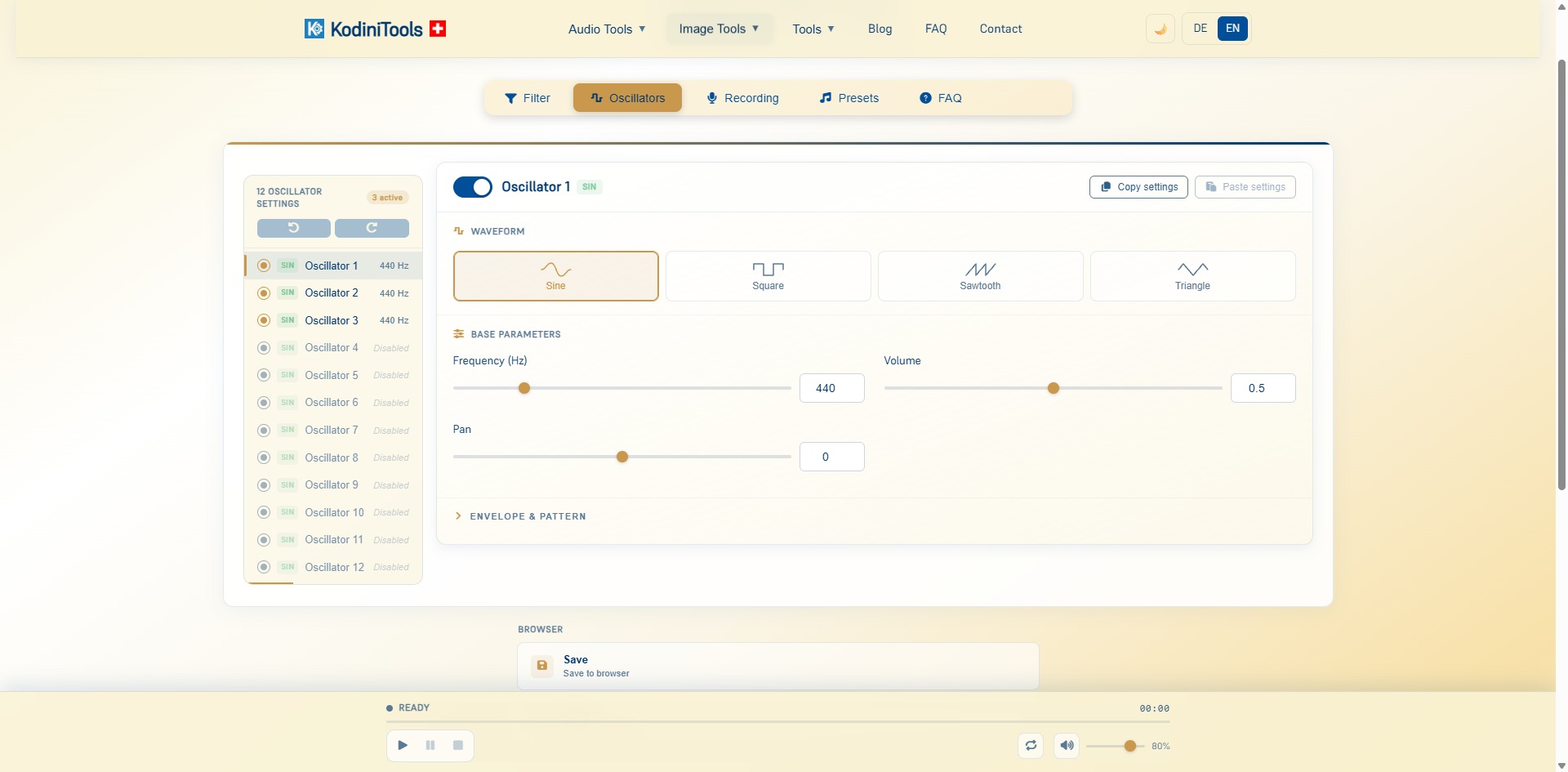
How the Alarm Tool Is Organized
The interface is divided into five tabs. The sound is created in the "Oscillators" tab; the other tabs shape, store and export it:
- Filter: trim frequency content of the overall sound so a tone becomes softer or more piercing.
- Oscillators: up to 12 sound sources, each switchable on and off. Every one has waveform, frequency, volume, pan plus envelope and pattern.
- Recording: capture the finished tone as an audio file and download it.
- Presets: load ready-made sounds or store your own settings, plus "Save to browser" so your work is still there on the next visit.
- FAQ: short answers about operation and export right inside the tool.
The Six Waveforms and Their Character
| Waveform | Sound | Good for |
|---|---|---|
| Sine | Pure, soft, no overtones | Gentle alarm clock, subtle notification |
| Square | Hollow, strong, many odd overtones | Classic beep, timer, retro signal |
| Sawtooth | Sharp, cutting, very rich in overtones | Alarm that stands out even in noise |
| Triangle | Soft with a slight edge | Friendly signal, in-between tone |
| Pulse | Square with 25% duty cycle, sharper and more nasal than the regular square, band-limited over 64 harmonics | Piercing alarm without digital harshness |
| Organ | Additive mix of the fundamental plus the 2nd, 3rd, 4th, 6th and 8th harmonic, soft and full | Pleasant alarm clock, gong-like signal |
Pulse and organ are new additions. The pulse is a square wave that is "on" for only a quarter of its period; that shifts the overtones and makes the sound more cutting. Band-limiting ensures no digital artifacts appear even at high frequencies. The organ builds the tone from the fundamental and selected overtones, much like a church organ with drawn stops, which makes it sound round and sustained.
Combining is where it gets interesting: a sine at 440 Hz plus a quiet sawtooth one octave higher gives a tone that sounds warm yet cuts through. An organ as the foundation with a quiet pulse on top gives a full but clearly noticeable alarm. Several oscillators at slightly offset frequencies create a beating effect that holds attention.
Step by Step: Building Your Own Alarm Sound
-
Open the Alarm Tool
Go to kodinitools.com/alarmtool — free, no registration.
-
Set up the first oscillator
In the "Oscillators" tab, enable Oscillator 1, pick a waveform and set the frequency. 440 Hz is a good starting point; higher values around 800 to 1000 Hz are easier to hear.
-
Add more oscillators
Two or three active oscillators are usually enough. Use "Copy settings" and "Paste settings" to transfer parameters from one oscillator to the next and then change only the frequency. Undo and redo are always available.
-
Shape envelope and pattern
Under "Envelope & Pattern" you define how a tone starts and fades, and whether it plays continuously or in intervals. A short, repeated pulse feels more urgent than a steady tone.
-
Listen, save, record
Test with play, pause and stop in the bar at the bottom, enable loop to hear the tone repeatedly. Happy with it? Store it as a preset and export it as an audio file in the "Recording" tab.
Keep the preview volume in check: the slider at the bottom right only controls monitoring. Sawtooth, square and pulse are noticeably louder than sine at the same value; start at 0.5 per oscillator and increase step by step.
Where Custom Alarm Sounds Pay Off
- Alarm clocks and reminders: a self-made tone that differs from every phone default does not get ignored. According to the tool description, the Alarm Tool can also be used as an alarm clock with your own audio files and timer settings.
- Apps and websites: notification and error sounds that match the product, instead of stock sounds with unclear licensing.
- Presentations and quizzes: signal tones for time-up, right or wrong answer.
- Workshop and kitchen: a piercing timer tone that gets through machine noise or a range hood.
Privacy: Everything Stays in Your Browser
Sound generation, presets and recording run entirely locally via the Web Audio API. "Save to browser" stores your settings only on your device; nothing is sent to a server.
Design your own alarm sound now — 12 oscillators, filter and recording, free in your browser.
Open Alarm Tool →